 Ahablo
ChatGPT “Context window full”: What It Means and the Fix
The notice means that one conversation is full, not your saved memories. Start a new chat (free) or continue with a summary. Deleting saved memories will not free up space in the chat.
Contents
What do “Context window full” and “Chat memory full” mean?
Same problem, two names. The wording makes it sound like ChatGPT’s memory feature is maxed out. According to OpenAI’s help article, that’s not what’s going on.
On the Free plan, ChatGPT can show either notice when a conversation fills up. Your messages and ChatGPT’s replies both take up space, so a few long exchanges can fill a chat. The notice can even show up the moment you reopen an older chat, with no warning beforehand.
Here’s the part people trip over: deleting saved memories won’t make more room in the chat. OpenAI says so in the first paragraph of the article. If you cleared your saved memories in Settings hoping the notice would vanish, that’s why it didn’t.
The help article is written for the Free plan. It doesn’t say whether paid plans see the same notice.
How do I keep chatting after the notice?
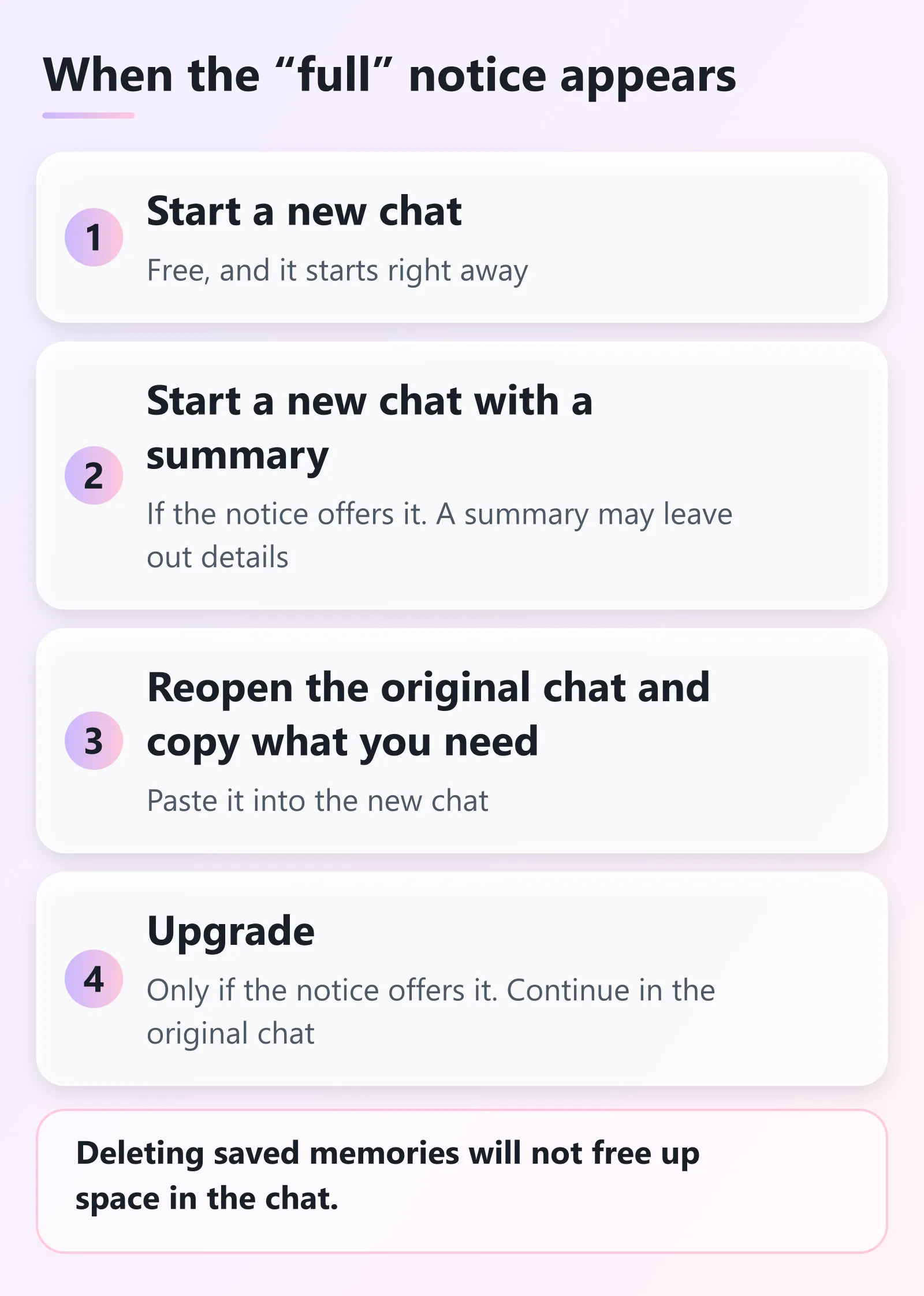
OpenAI gives three options:
- Start a new chat. It’s free and instant. Open the sidebar and select New chat.
- Start a new chat with a summary. If the notice offers it, the summary lets you pick up where you left off. OpenAI warns that a summary may leave out details.
- Upgrade. If the notice offers an upgrade, you can choose it to continue in the original chat.
If the original chat is still in your history, reopen it and copy over anything you still need, like the paragraph you’re editing. That way you keep the exact wording.
What if the new chat says it’s full too?
OpenAI has a short checklist:
- If you continued with a summary, choose New chat in the sidebar and send a short message in that separate chat. OpenAI’s example is “What’s the capital of France?”
- If you started a separate chat and saw the notice after one or a few short messages, check OpenAI Status. If there’s an incident affecting ChatGPT conversations, try again once it’s resolved.
- If there’s no incident, sign in to the same account in a private browser window and send the same short message in a new chat.
- If it keeps happening, contact OpenAI Support, even if it only happens in the app.
When you write to Support, OpenAI asks you to include:
- your app or browser version
- the time and time zone
- about how many messages you sent
- what happened when you tried the browser
- a link to a test chat, if you have one you’re comfortable sharing. Your original conversation can stay private.
How are saved memories different?
Because the notice says “memory,” it helps to know how ChatGPT’s memory feature actually works. This section is based on OpenAI’s Memory in ChatGPT article.
Where the controls are. Open Settings, select Personalization, then Memory. Depending on your account, you may see options such as Memory, Reference saved memories, Reference chat history, Memory summary, Manage, or Saved memories. Controls vary by plan, region, platform and workspace settings. A setting you don’t see may not be available for your account yet.
Saved memories vs. chat history. Saved memories are details you explicitly ask ChatGPT to remember, or that it saves as useful context. They’re stored separately from chat history. You can ask ChatGPT to forget one, or delete it in Memory settings. Deleting a saved memory stops it from being used in future personalization. It doesn’t remove mentions of that information from past conversations.
Deleting a chat doesn’t delete its memory. OpenAI says deleting a chat alone doesn’t necessarily delete a separate saved memory created from that chat. To remove something thoroughly, delete the saved memory and the chat where you first shared it. Then check the other places it may appear: memory summary, saved memories, regular and archived chats, saved files and connected apps. Deletion can take time to propagate. Logs of deleted saved memories may be kept for up to 30 days.
Chat history has no separate storage limit. The article states there’s no separate storage limit for what ChatGPT can reference through chat history.
If your saved memories themselves are full. A separate “memory full” state for saved memories is a different issue. In its October 15, 2025 release note, OpenAI said ChatGPT would start managing saved memories automatically to help avoid that state, beginning with Plus and Pro users on the web. OpenAI’s help articles don’t describe separate steps for it.
Save your chats before you clean up
About to delete old chats to tidy up? Export first, because an export can’t restore chats you’ve already deleted. The guide to exporting your ChatGPT chat history has the steps. If you’d rather hide a chat than delete it, see ChatGPT locked chats.
Quick reference
| Situation | What OpenAI says |
|---|---|
| Notice appears in a long chat | Start a new chat, or continue with a summary |
| Summary offered | It may leave out details |
| Deleted saved memories, notice still there | Deleting saved memories won’t make more room in the chat |
| New chat shows the notice after a short message | Check OpenAI Status, try a private browser window, then contact Support |
For plans, memory settings and other recent changes, the ChatGPT guide has the overview.
About this guide
Written by Aha from OpenAI’s help articles, checked 2026-11-16. The article on this notice covers the Free plan.
Sources, checked 2026-11-16:
- Why does ChatGPT say “Context window full” or “Chat memory full”?
- Memory in ChatGPT
- ChatGPT release notes
Last updated here: 2026-11-17.
Related posts
Sources and checks
- Last checked
- Nov 16, 2026
- Updated
- Nov 17, 2026
- Checked by
- Aha
- How we checked
- Checked against OpenAI's official help articles on 2026-11-16. Wording and menu names come from those articles.
- Sources