 Ahablo
ChatGPT Locked Chats: How to Lock One (and the PIN Trap)
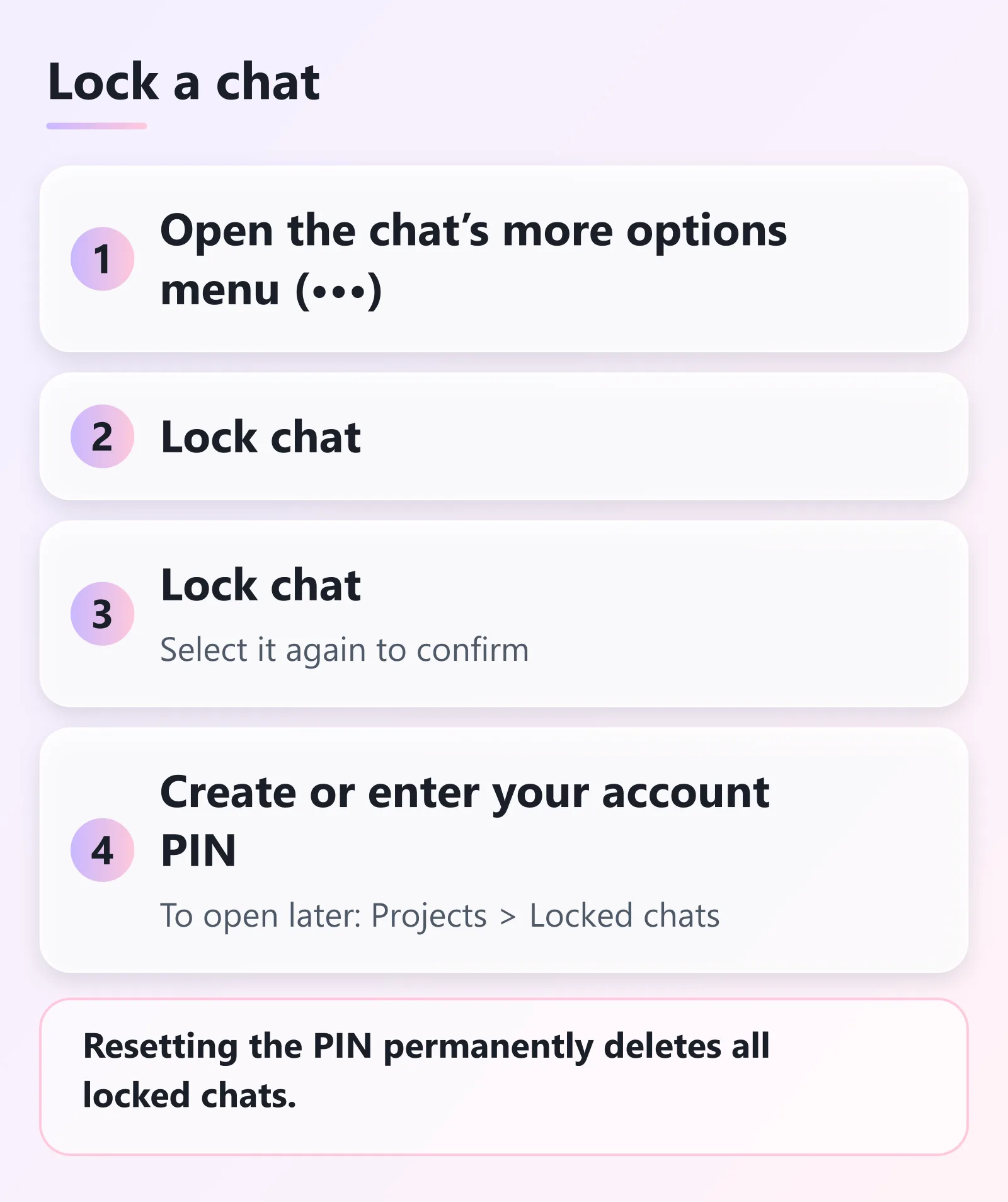
Open a chat's menu (•••), select Lock chat, and set a 4-digit account PIN. Do not reset the PIN if you forget it: a reset permanently deletes all locked chats.
Contents
- Before you lock a ChatGPT chat, know what a PIN reset does
- What are locked chats?
- What locking doesn’t do
- Which plans and devices get locked chats?
- How to lock a chat
- How do I set up the account PIN?
- How to open a locked chat
- Why is the Lock chat option missing or greyed out?
- What else changes when a chat is locked?
- How to unlock a chat for good
- I forgot my PIN. Now what?
- Keep reading
- About this guide
Before you lock a ChatGPT chat, know what a PIN reset does
Resetting your account PIN permanently deletes all of your locked chats. It also deletes remembered information stored only within locked chats. Files or other content protected only by your previous PIN go too. OpenAI says this can’t be undone and that OpenAI Support can’t recover any of it.
Forgetting your PIN, on the other hand, deletes nothing. Your chats just stay locked. So if you forget it, don’t reset it to fix a problem unless you’re fine losing everything that’s locked.
What are locked chats?
Locked chats keep selected conversations in your account but hide them from your regular chat history, pinned chats and regular conversation search. OpenAI suggests this can help when you share your screen or use a shared device.
OpenAI announced the feature in its release notes on October 20, 2026. It’s rolling out gradually, so you may not see it yet, even on an eligible plan.
What locking doesn’t do
OpenAI is explicit that locking changes where a conversation appears and how you open it. It doesn’t:
- create end-to-end encryption or a separate encrypted vault
- change how long OpenAI retains the chat
- change your “Improve the model for everyone” setting
- remove information ChatGPT remembered before you locked the chat
- override workspace policies, safety requirements, or legal and compliance obligations
If you want a conversation kept out of history and out of model training while it lasts, OpenAI points to temporary chat instead. Temporary chats can’t be locked while they stay temporary.
Which plans and devices get locked chats?
According to the help article, locked chats are available on ChatGPT Free, Go, Plus, Pro, Business, Enterprise and Edu. Not on ChatGPT for Healthcare. The original release note named only Free, Go, Plus and Pro, so the help article (checked 2026-11-16) lists a wider set of plans than the launch announcement did.
Where you can use them:
- Web, iOS and Android.
- Desktop, only in the new ChatGPT app for macOS or Windows. You can lock eligible cloud conversations in Chat or Work mode. Codex conversations (including cloud Codex) and local Work conversations can’t be locked.
- Voice works in locked chats on the web and in the iOS and Android apps, where Voice is available to you. It isn’t available in locked chats in the desktop app.
How to lock a chat
- If ChatGPT is still responding, wait for it to finish.
- Open the more options menu (•••) for the chat.
- Select Lock chat.
- Select Lock chat again to confirm.
- Create or enter your account PIN when prompted.
The chat moves into locked chats. Its title and content disappear from regular history and regular conversation search, though search results can take a while to update. Other devices where ChatGPT is already open may keep showing the title until their lists refresh. Check them before you share a screen.
How do I set up the account PIN?
ChatGPT asks you to create a PIN the first time you lock a chat or open the locked chats area. Select Create a PIN, enter 4 digits, and enter them again to confirm.
The PIN belongs to your OpenAI account, not a workspace. The same PIN works on supported devices where you’re signed in. A second OpenAI account has its own separate PIN. After too many wrong attempts, ChatGPT temporarily disables access until a retry period ends.
To change your PIN (this keeps your locked chats): go to Settings > Security and login > Account PIN and find Change PIN. Enter your current PIN, then create and confirm a new one. You need the current PIN even if you normally open locked chats with Face ID, Touch ID or device unlock.
How to open a locked chat
- Select Projects.
- Select Locked chats.
- Enter your account PIN, or use supported device authentication (Face ID, Touch ID, or your device unlock method on supported mobile devices).
- Select the chat.
Access is temporary. On web and desktop, it applies to the tab or window where you entered the PIN, and on the web it ends if you refresh or close the tab. On iOS and Android, access ends automatically after 1 minute away from the locked chat or the Locked chats area, or after 1 minute in the background. Select Lock now to end it right away.
Why is the Lock chat option missing or greyed out?
Some chats can’t be locked, even if the Lock chat option appears. OpenAI lists these:
- temporary chats
- archived chats
- group chats
- chats in the earlier Health experience
- chats with scheduled tasks
- chats with meeting recordings
- chats associated with background tasks
- chats with responses saved as project sources
Some chats still in a project, such as copies created from a shared conversation, can’t be locked either. If Lock chat is unavailable, the conversation can’t be locked from your current device.
If a chat has a scheduled task, delete the task first, including paused ones. When you lock a project chat, it leaves the project and stops using the project’s instructions, files and memory.
What else changes when a chat is locked?
- Search. You can’t search across all locked chats. Open the locked chats area and browse.
- Sharing and organizing. You can’t archive, pin, move or share a locked chat. Unlock it first. Anyone who can open a locked chat can still copy its contents.
- Shared links. If a chat already had a shared link, the link still gives access to what was shared earlier. Delete the link separately.
- Admins. Workspace admins can’t unlock your chats, reset your PIN or disable locked chats. They also don’t lose access to workspace data. In Enterprise and Edu, locked chats are still included in conversation logs on the OpenAI Compliance Platform.
- Memory. When Memory is on, locked chats can use relevant information from regular Memory. Information remembered only within locked chats doesn’t carry into regular chats. After you permanently unlock a chat, ChatGPT may use the full conversation for regular Memory if your settings allow.
- Files and screenshots. Locking protects files uploaded or created in the chat. Files added from elsewhere keep their existing access rules. On Android, screenshots of locked chats may appear blank.
- Ads. If ads are available for your account, they may also appear in locked chats.
How to unlock a chat for good
Open the locked chat and open the more options menu (•••). Select Unlock chat (or Unlock on iOS) and confirm. The chat returns to regular history. If it came from a project, it goes to regular history rather than back into the project.
I forgot my PIN. Now what?
According to OpenAI, you have two paths:
- Do nothing. Your chats stay locked and aren’t deleted.
- Reset the PIN. Go to Settings > Security and login > Account PIN, find Reset PIN, verify your identity, and confirm the deletion. This permanently deletes all locked chats and the content protected only by the old PIN. Then you create a new PIN. Deleted conversations follow OpenAI’s standard retention policy.
Neither a workspace administrator nor OpenAI Support can unlock your chats or bypass the PIN. OpenAI also says not to reset your PIN to troubleshoot display problems, such as images not loading in a locked chat. If you can open a locked chat but can’t send messages on the web or desktop app, OpenAI suggests trying the mobile app with the same account and PIN.
Keep reading
- Privacy-minded? Here’s how to export your ChatGPT chat history before you clean house.
- Memory comes up above. The ChatGPT memory and “chat full” guide explains how saved memories work.
- The ChatGPT guide has plans and other recent changes in one place.
About this guide
Written by Aha from OpenAI’s help article and the October 20, 2026 release note. Both were checked 2026-11-16. Locked chats are rolling out gradually, so what you see may differ from this guide.
Sources, checked 2026-11-16:
Last updated here: 2026-11-17.
Related posts
Sources and checks
- Last checked
- Nov 16, 2026
- Updated
- Nov 17, 2026
- Checked by
- Aha
- How we checked
- Checked against OpenAI's official help article and the October 20, 2026 release note on 2026-11-16. Menu names come from those articles.
- Sources